How to Secure Your Security Camera From Hackers
Lock down your home security camera with a unique password, two-factor sign-in, updates, router settings and a quick check of who has access.
 Save
A security camera is only as safe as its password, its software and the network it sits on. You can close most of the common gaps in about 30 minutes: set a unique password, turn on two-factor sign-in, update the firmware, tighten your router and remove access you no longer need.
Key points
- Change every default. Default usernames and passwords are easy to find online and give little protection, so replace them on both the camera and the router.
- Use a unique password. Reusing a password from another account is risky because passwords exposed in breaches are tried on other accounts.
- Turn on two-factor authentication. Where the camera app or account offers it, enable it so a stolen password alone is not enough.
- Keep firmware and the app current. Updates fix known weaknesses, so install them promptly or switch on automatic updates.
- Secure the router first. Encryption, a unique admin password and regular router updates protect every device on your Wi-Fi, including the camera.
- Turn off what you don’t use. Disable remote management and unneeded features, and disconnect old devices.
- Review access now and then. Check who is signed in and look at the access log for unfamiliar activity.
Why cameras get targeted
Cameras are always on, always connected and often set up once and forgotten. That makes them attractive when the basics are missed. The consumer guidance from the US Federal Trade Commission (FTC) points to the same few habits for connected devices: change default settings, use unique passwords, enable two-factor authentication, keep software updated and switch off features you don’t need. For IP cameras it also suggests regularly checking access logs for unfamiliar addresses or unusual access times.
The US Cybersecurity and Infrastructure Security Agency (CISA) gives similar advice for any new internet-connected device: change default passwords, turn on multi-factor authentication, install updates promptly, review privacy and security settings, and keep a device online only when it needs to be.
Where to focus first
Not every fix takes the same effort. This table ranks the main fixes by how much they protect against and how long they take.
| Fix | What it protects against | Time needed | Where to do it |
|---|---|---|---|
| Unique camera account password | Guessed or reused passwords | 5 minutes | Camera app, account settings |
| Two-factor authentication | Stolen passwords | 5 minutes | Camera app, account security |
| Firmware and app updates | Known weaknesses | 5 to 10 minutes | Camera app, device settings |
| Router password and encryption | Strangers joining your Wi-Fi | 10 minutes | Router admin page |
| Turn off unused features | Extra ways in | 5 minutes | Camera app and router |
| Review connected devices and logs | Unknown devices and odd access | 5 minutes | Router and camera app |
Do the first two rows today. They give the most protection for the least effort.
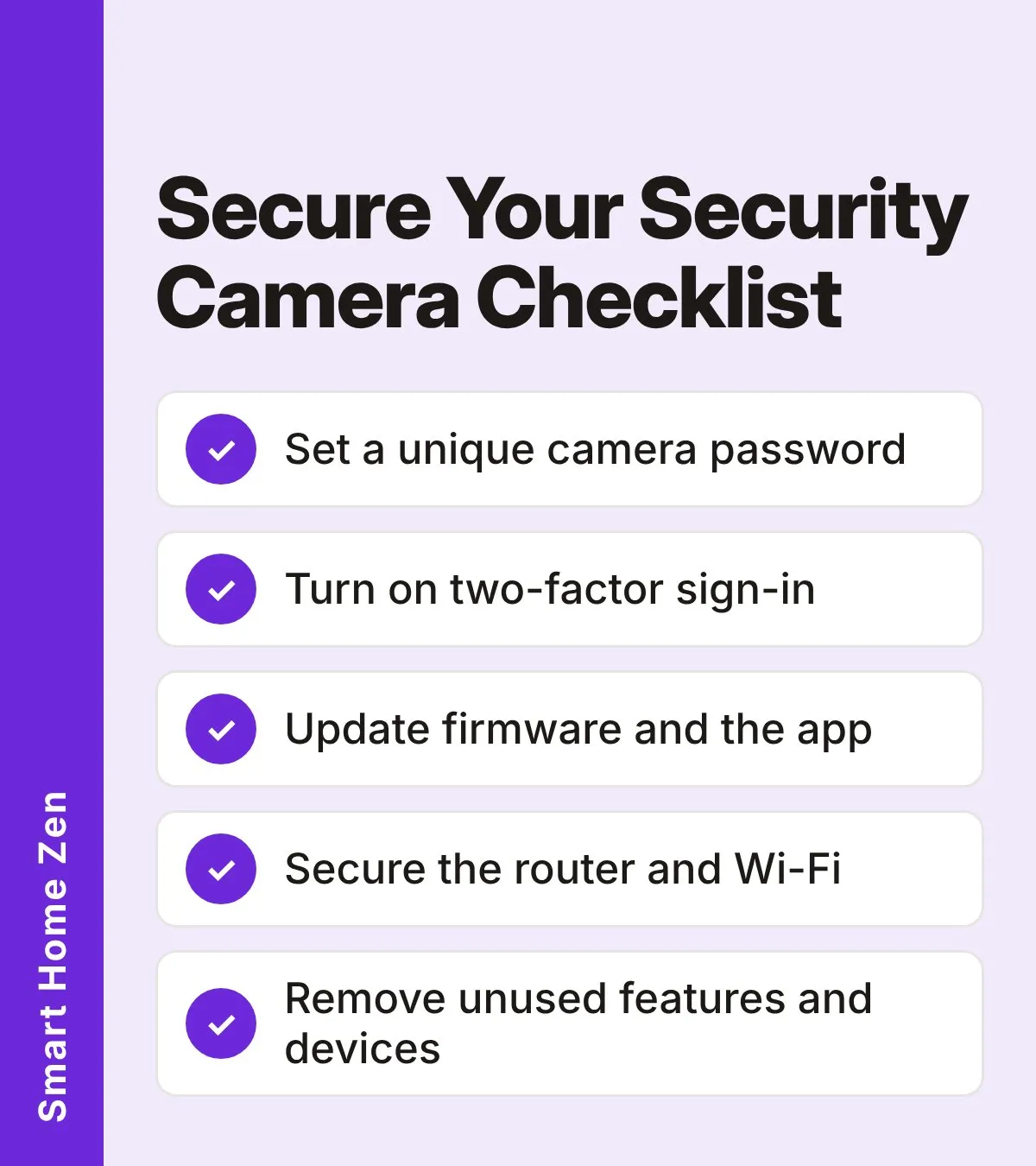
Checklist
Work through these in order and tick each one off. Menu names differ by brand, so look for the closest match in your app.
- Replace the camera’s default username and password with a unique one that you don’t use anywhere else.
- Use a different password for the camera account than for your email, so a breach elsewhere doesn’t open your camera.
- Turn on two-factor authentication for the camera account in the app’s security settings.
- Update the camera firmware and the companion app to the latest version, and enable automatic updates if offered.
- Change the router’s default admin username and password, and give the Wi-Fi network a name that doesn’t reveal your name, address or router brand.
- Confirm the router’s wireless encryption is turned on and check for router updates.
- Open the router’s list of connected devices and remove anything you don’t recognize.
- Turn off remote management and any camera feature you never use.
- Remove old cameras and other devices you no longer use from the network and from your account.
- Check the camera’s access log or sign-in history for unfamiliar addresses or odd times.
How to do the key steps
Set a strong, unique password
Open the camera app’s account settings and choose a long, unique password. A password manager makes this easy because you don’t need to remember it. Don’t build it from your name, address or the camera brand, and don’t reuse it from any other account. If the camera has a separate local login (for example, for a web page or recorder), change that default too.
Turn on two-factor authentication
In the camera account’s security or login settings, look for two-factor or multi-factor authentication. It asks for a second proof, often a code from your phone, so a stolen password isn’t enough. If your camera account has no such option, use the strongest password you can and check whether the maker offers it in a newer app version.
Keep firmware and the app updated
Open the device settings and look for firmware or software update. Install anything pending, then check the app store for a newer version of the companion app. Updates fix known weaknesses, so this step matters even when the camera seems to work fine. After an update, recheck your security settings in case a setting changed.
Tighten the router
Every camera on your Wi-Fi depends on the router. Log in to its admin page and change the default admin username and password. Make sure wireless encryption is on, and check regularly for router updates. Some routers also let you create a separate guest network, which can keep cameras away from laptops and phones, though a different network name and setup vary by model, so check your router’s manual.
Remove what you don’t need
Turn off remote management on the router if you won’t use it, and disable camera features you don’t use. If you do watch your camera away from home, keep that feature but protect the account with a strong password and two-factor sign-in. Disconnect old devices you no longer use, since their outdated security can weaken the network.
Review who and what is connected
In the router’s connected devices list, make sure you recognize everything. Then look at the camera’s sign-in history or access log if it has one. Unfamiliar addresses or access at odd hours are a reason to change the password straight away and sign out of all sessions.
Common mistakes
| Mistake | Why it matters | What to do instead |
|---|---|---|
| Keeping the default password | Default passwords are easy to find online | Set a unique one at setup |
| Reusing an email password | Breached passwords get tried on other accounts | Use a different password for each account |
| Ignoring update prompts | Known weaknesses stay open | Update promptly or enable automatic updates |
| Leaving unused features on | Each feature is one more way in | Turn off remote management and extras you don’t need |
| Never checking the device list | A stranger on your network goes unnoticed | Review connected devices every few months |
What if you think it’s already been accessed
Change the camera account password right away, sign out of all other sessions if the app allows, and turn on two-factor authentication. Then change the router password, update firmware on both devices and review the connected-devices list. If the camera still shows signs of unfamiliar access afterward, a factory reset followed by a fresh setup with a new password is a reasonable next step. Contact the manufacturer’s support if you cannot regain control.
Related guides
How your camera stores footage also affects what a hacker could see. Read cloud vs local storage for security cameras to weigh the privacy trade-offs. If your camera drops off the network while you adjust settings, see why a security camera keeps going offline. Wiring a camera instead of using Wi-Fi is covered in Wi-Fi vs PoE security cameras.
Sources
 Save
Frequently asked questions
Can a security camera really be hacked?
Yes. Cameras that still use a default password, reuse a password from a breached account or never receive updates are the easiest targets. Fixing those three things closes the most common doors.
Is two-factor authentication worth turning on for a camera app?
Yes. Government guidance recommends it wherever a device or account offers it, because a stolen password alone then isn't enough to get in.
Do I need to update the camera if it works fine?
Yes. Manufacturers release updates to fix known weaknesses, so a camera that works fine can still be exposed. Turn on automatic updates if your app offers them.
Should I disable remote access to my camera?
Only if you never watch it away from home. If you do use remote viewing, keep it on but protect the account with a strong password and two-factor sign-in. Turn off any remote feature you don't use.