Why Your Security Camera Keeps Going Offline (and How to Fix It)
Find out why your Wi-Fi security camera keeps dropping offline and fix it in order: power, signal, 2.4 vs 5 GHz, router settings and firmware.
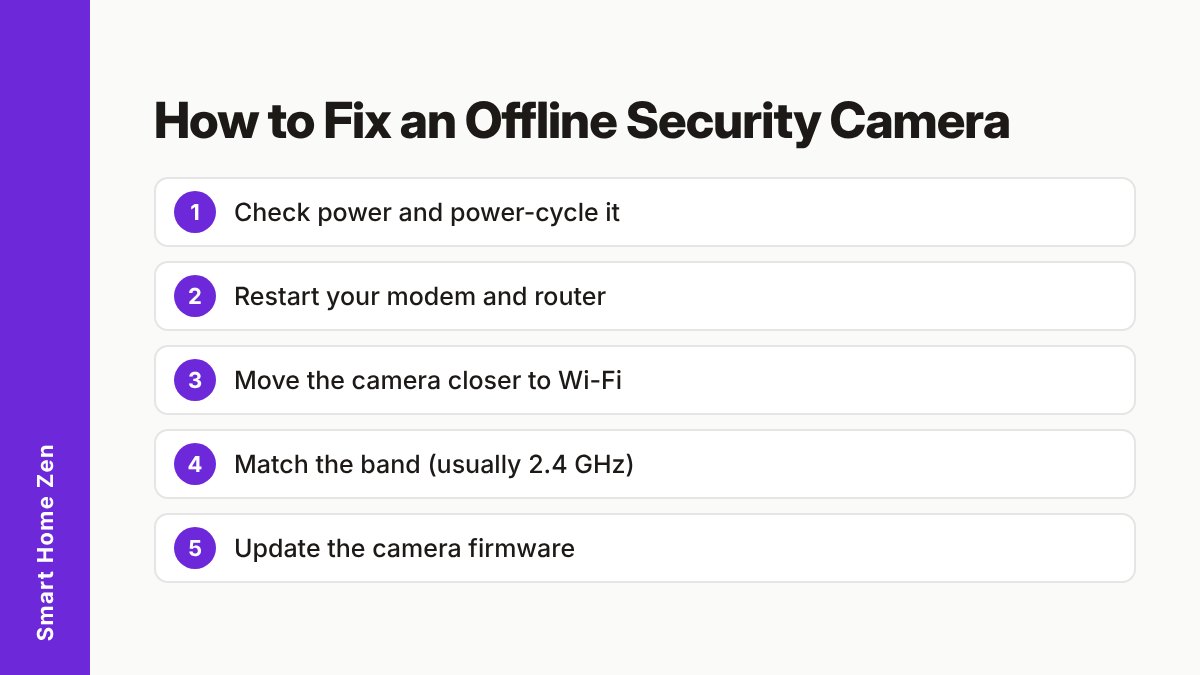
A security camera usually goes offline because it cannot hold a steady link to your router. The most common culprits are weak Wi-Fi signal, a camera set to the wrong band, an unstable power supply, outdated firmware, or a router setting that blocks the camera. Work through them in the order below, from the quickest checks to the more involved fixes.
Quick answer
Start with the simple things, because they solve most cases:
- Check that the camera has power and that the cable and adapter are firmly connected.
- Unplug the camera for about 20 seconds, then plug it back in.
- Restart your modem and router: unplug both for about 30 seconds, plug them back in, and let them reconnect.
- Move the camera closer to the router, or check the signal where it is mounted.
- Make sure the camera is on a band it supports, which is usually 2.4 GHz.
If the camera is still dropping out, keep reading. The sections below explain what each cause looks like and how to fix it.
What causes a security camera to go offline
Camera makers list a similar set of causes for connection loss. The table matches each one to its usual symptom and first fix.
| Cause | What you may notice | First fix |
|---|---|---|
| Weak Wi-Fi signal | Camera drops at certain times or after a few days; video is choppy | Move the camera or router closer, add mesh or a wired link |
| Wrong or crowded band | Camera never connects, or disconnects when many devices are online | Use separate 2.4 GHz and 5 GHz network names and test each |
| Unstable power | Camera reboots or goes dark; light changes or turns off | Check the adapter and cable, try another outlet |
| Outdated firmware | Random disconnects that started after a long period without updates | Update the camera in its app |
| Router limits | Camera is the newest device and others work fine | Free up connections, review firewall and guest network settings |
| Wrong network details | Camera went offline after a router or password change | Re-enter the exact network name and password |
| Interference or obstacles | Dropouts near thick walls, metal or electronics | Reposition the camera or antenna |
Check power first
A camera that looks “offline” in the app is sometimes simply off or restarting. Confirm that the status light behaves normally, that the power adapter is plugged in all the way, and that the cable has no kinks or damage. If the camera is battery powered, charge it fully, since a low battery can cause it to disconnect.
Power-cycling is a safe test. Unplug the camera for around 20 seconds, then reconnect it and wait for it to rejoin the network. If it keeps losing power, try a different outlet or the original adapter before blaming the Wi-Fi.
Fix the Wi-Fi signal
Distance and obstacles are the most frequent cause. Walls, floors, metal objects and other electronics all weaken the signal, so a camera on a far corner of the house or a detached garage may sit at the edge of your router’s reach.
What helps:
- Move the camera or the router so they are closer, with fewer walls in between.
- Check signal where the camera is mounted, not where the router sits. Many camera apps show a signal strength reading in the device settings.
- Test your internet speed. Cameras need steady upload bandwidth to send video, so a slow or congested connection can look like a camera problem.
- Add mesh Wi-Fi or an access point if you have several dead zones. One router in a hallway rarely covers a whole home.
- Use a wired connection if your camera supports Ethernet, which avoids Wi-Fi problems entirely.
- Keep one router. More than one router on the same network can cause connection problems; if you have a second one, set it to bridge (access point) mode.
A range extender can help for a camera that is just slightly too far away, but it adds another link that can fail. For a camera that matters, a closer position or a wired link is a safer fix.
2.4 GHz vs 5 GHz: pick the right band
Most security cameras use 2.4 GHz only. That band reaches farther and passes through walls better than 5 GHz, but it is also more crowded and more prone to interference from other devices. The 5 GHz band is faster over short distances but weaker through walls.
| 2.4 GHz | 5 GHz | |
|---|---|---|
| Range | Longer | Shorter |
| Through walls | Better | Weaker |
| Speed | Lower | Higher |
| Interference | More common | Less common |
| Camera support | Nearly all cameras | Only some cameras |
How to handle it:
- Check your camera’s specifications to see which bands it supports.
- If your router uses a single network name for both bands, create a separate name for each, for example “Home-2.4” and “Home-5”.
- Connect the camera to the band it supports. If it supports both, test each one and keep the one that stays online.
- Make sure the network name and password you enter match the router exactly, including capital letters.
Some setups also work better if you try a 2.4 GHz network instead of 5 GHz, or place the camera on a guest network, as Ring’s support guidance suggests for its devices.
Router settings that can knock a camera offline
If the Wi-Fi signal is fine, look at the router itself.
- Connected-device limit: some routers cap how many devices can join. If the limit is reached, a new camera may be refused.
- Encryption type: use a supported mode such as WPA2 or WPA3. Very old or unusual modes can stop cameras from joining. The NSA recommends WPA3 where available and WPA2/3 mixed mode when older devices need to connect.
- Crowded channel: if many neighbors use the same channel, switching your router’s channel can help.
- Quality of Service (QoS): if your router has it, giving the camera priority can reduce dropouts.
- DHCP and IP address: make sure the router’s DHCP server is on. If you set a fixed (static) IP for the camera, the address must sit inside your network’s range, for example 192.168.1.100 on a router at 192.168.1.1.
- Firewall: a very strict firewall setting can block camera traffic. Lowering it, or using a guest network, is something Ring suggests testing.
Change one setting at a time and wait a day, so you know what worked.
Update the firmware
Manufacturers release firmware updates to fix bugs, including ones that cause disconnects. Open your camera’s app, check for an update, and install it while the camera is on a stable connection. Do not unplug the camera during the update.
Your router needs updates too. The NSA advises keeping routers patched and replacing them when they reach end of life, and also recommends rebooting a router at least weekly.
Keep the camera secure while you fix it
A reliable camera is also a safe one. While you are in the settings:
- Use a long, unique password for the camera account and your Wi-Fi, ideally stored in a password manager.
- Turn on two-factor authentication in the camera app.
- Consider placing smart devices on a separate network from your computers and phones. The NSA suggests splitting a home network into primary, guest and IoT networks.
- Keep the camera and router firmware current.
Common mistakes
- Testing only near the router. The camera may work fine on the workbench and fail on the wall.
- Changing several settings at once. You will not know which one helped.
- Using the wrong band or a mistyped password. A single wrong character or capital letter stops the camera from joining.
- Ignoring power. A weak adapter or loose cable looks like a Wi-Fi fault.
- Skipping updates. Old firmware keeps old bugs.
- Hiding the problem with an extender. It may mask weak signal rather than fix it.
When to contact support or a professional
Contact the manufacturer if the camera still drops after a reset, a new location and a firmware update, because the fault may be in the hardware. If you need to run mains-powered cables, work on wiring, or reach a camera high on a wall or roof, use a qualified electrician or installer rather than doing it yourself. Always unplug a device before handling its power connection, and use a stable ladder when mounting outdoors.
Sources
Frequently asked questions
Why does my security camera go offline at the same time every day?
A repeating pattern usually points to something on a schedule, such as a router that restarts itself, a nightly firmware update, or a busy evening when many devices compete for the same Wi-Fi. Check your router's restart and update settings first.
Should my security camera use 2.4 GHz or 5 GHz Wi-Fi?
Most Wi-Fi cameras only support 2.4 GHz, which reaches farther but is more prone to interference. If your camera supports both bands, test each one and keep whichever stays connected.
Will a Wi-Fi extender stop my camera from going offline?
It can help if the camera is simply too far from the router, but a weak or crowded network can still cause drops. Moving the camera closer, using a mesh system or connecting the camera by cable are often more reliable.
Does a camera that goes offline mean it has been hacked?
Not usually. Dropouts are far more often caused by weak signal, power or router problems. Still, use a strong unique password, turn on two-factor authentication and keep firmware updated.