Cloud vs Local Storage for Security Cameras: How to Choose
Compare cloud and local storage for security cameras on cost, privacy, outages and theft, and pick the setup that fits your home and budget.
 Save
The right choice depends on what you want to protect against. Cloud storage is easier and survives camera theft, but it charges a recurring fee and needs working internet. Local storage (a microSD card, hub or recorder) costs less over time and keeps recording during an outage, but footage can be lost if the device is stolen or the card fails. Many homes do best with a mix of the two.
Quick answer
Choose cloud if you want simple setup, remote clips and off-site copies and you accept a monthly fee. Choose local if you want to avoid subscriptions and keep more control of your footage. Choose hybrid if the cameras guard something important, such as a front door.
How each type works
With cloud storage, the camera sends clips to the manufacturer’s servers and you watch them in the app. Plans are usually tiered by how long clips are kept, for example 7, 30 or 60 days.
With local storage, footage is written to hardware you own. That can be a microSD card inside the camera, a base station (hub) that serves several cameras, or a network video recorder (NVR) with a hard drive. If you are still deciding how the cameras connect, see Wi-Fi vs PoE security cameras, because wired PoE cameras pair naturally with an NVR.
Side-by-side comparison
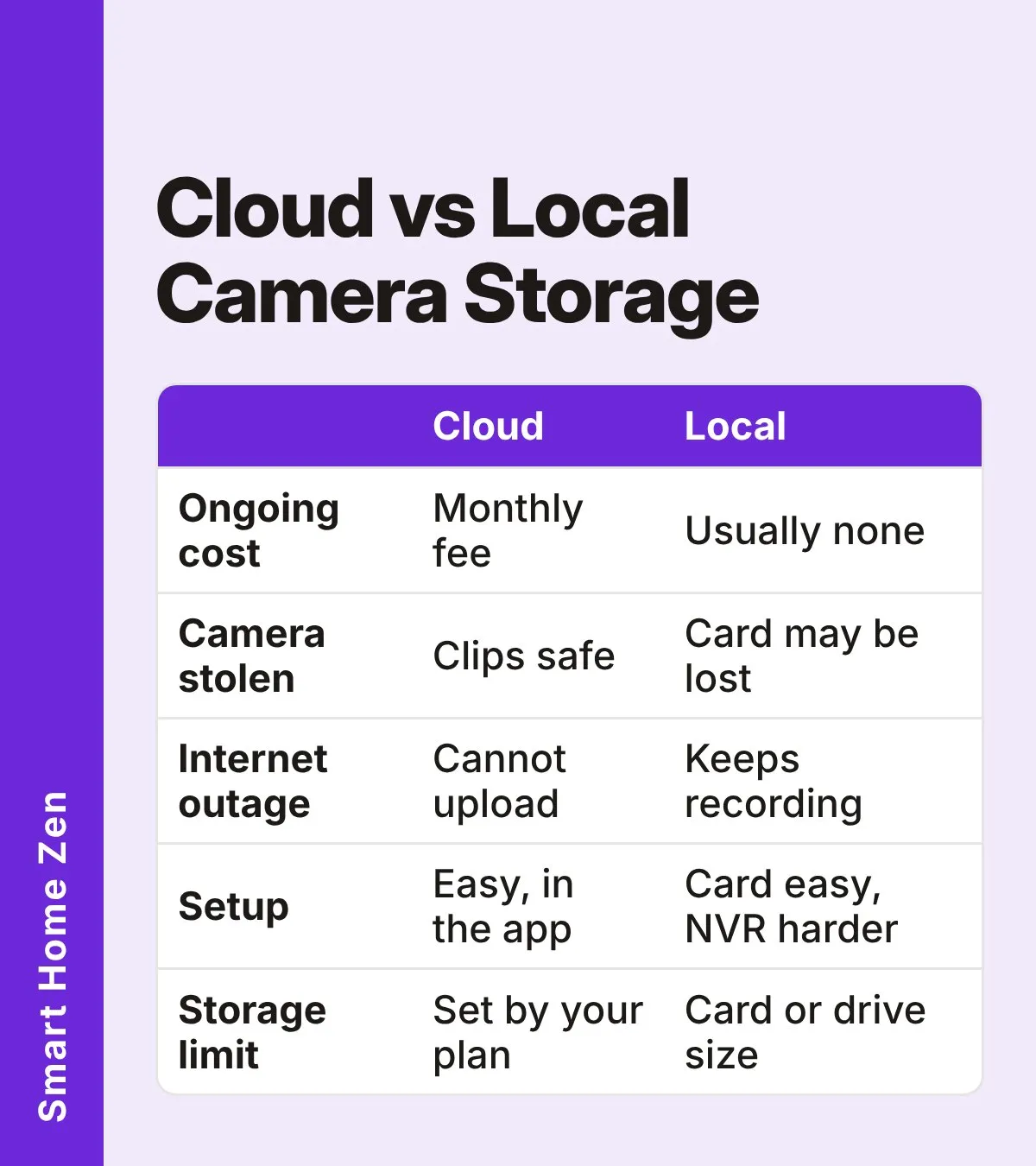
| Factor | Cloud | Local |
|---|---|---|
| Setup | Easy, mostly in the app | Varies: easy for microSD, more work for an NVR |
| Ongoing cost | Monthly or yearly fee after any trial | Usually none after you buy the hardware |
| Camera stolen or destroyed | Uploaded clips are safe | Footage on the card leaves with the camera |
| Internet outage | Cannot upload while down | Can keep recording if power and storage work |
| Remote viewing | Built in | Often easy with a hub, harder with a self-built NVR |
| Storage limits | Set by your plan | Set by the card or drive size |
| Wear and tear | None for you to manage | Cards wear out and need replacing |
What the costs look like
Prices vary by brand and change often, so use these as examples from the sources below, not quotes. One reviewer reported paying about $3 a month for a single camera plan and about $10 a month for several cameras on another brand. A manufacturer’s own four-camera example put cloud at roughly $600 over five years, against about $140 for microSD cards, about $150 to $190 for a hub, and about $480 or more for an NVR with a hard drive, including electricity.
That manufacturer sells local-storage products, so treat its figures as directional. The pattern is still useful: cloud is cheapest to start and most expensive to keep, while an NVR costs the most up front and the least per month.
Privacy and security
Neither option is automatically private. Cloud footage can be exposed if an account is hacked or a provider has a breach. Local footage can also be exposed if the camera or recorder is reachable from the internet with weak settings. One review notes that the only way to keep footage fully private is a recorder with no internet access, which also means giving up easy remote viewing.
Whatever you pick, use a strong, unique password and turn on two-factor authentication where it is offered. Also keep camera firmware updated.
Which setup fits which home
- Renters with 1 to 3 cameras: cloud or microSD, because nothing needs to be wired in.
- Homes with several cameras and no wish for fees: a hub or an NVR.
- Front door or garage cameras: hybrid, so a thief cannot erase the only copy.
- Rural or unstable internet: local recording, which keeps working when the connection drops. If your camera already drops off the network, read why your security camera keeps going offline.
Step-by-step: how to choose
| Step | What to do |
|---|---|
| 1 | List what you must protect. Write down which cameras cover entry points and which only watch the yard. Entry points deserve a backup copy. |
| 2 | Check what your cameras support. Look for a microSD slot, base station or NVR support in the specifications. Some brands do not support microSD at all. |
| 3 | Price the five-year cost. Multiply any monthly fee by 60 and add card, hub or drive costs, plus replacement cards. Compare the totals. |
| 4 | Plan for theft and outages. Ask what happens if the camera is taken or the internet is down. If either answer is “I lose the footage,” add a second copy. |
| 5 | Secure the account and device. Set a unique password, turn on two-factor authentication and update the firmware before you rely on it. |
| 6 | Test a recording. Trigger motion, then play the clip back on your phone and from the card or recorder. Fix any gaps before you trust the setup. |
Backups and how long to keep footage
Decide how many days of footage you actually need. Most people only look back a day or two, so a short retention window is usually enough, and shorter plans cost less. Local drives fill up and then overwrite the oldest clips, so a bigger card or drive simply buys more days. If a clip matters, such as a package theft or an incident you may report, save a copy to your phone or computer right away instead of trusting it to stay in the loop. A second copy in a different place is the simplest protection against a failed card, a stolen camera or a closed account.
Questions to ask before you buy
Check whether a free trial turns into a paid plan automatically, and what the camera still does if you cancel. Some cameras keep live view but drop clip history, and some smart alerts stop working. Look at how many cameras one plan covers, because a single-camera plan adds up quickly across a house. For local storage, find the largest card or drive the camera supports and whether recordings can be exported as normal video files. Last, check how remote viewing works without a subscription, since easy access away from home is often the real reason people pay.
Common mistakes
- Buying a camera with no storage plan, then finding live view works but nothing is saved.
- Assuming a microSD card lasts forever. Cards wear out, so check recordings from time to time and replace the card when playback fails.
- Hiding only the camera but not the recorder. Keep an NVR or hub out of sight and out of easy reach.
- Skipping security settings because the footage is “only local.”
- Choosing on price alone, when motion alerts and clip quality also matter. If alerts are the problem, see why your camera sends false motion alerts.
When to call a professional
Running cable for PoE cameras, mounting a recorder or setting up secure remote access to an NVR is straightforward for some people and tricky for others. If you are unsure, a licensed installer can wire and configure the system, and in some areas cabling work needs a licensed electrician. Ask them to show you how to export footage before they leave.
Sources
 Save
Frequently asked questions
Do security cameras work without a subscription?
Many do. Cameras with a microSD slot, a base station or a recorder (NVR) can save footage locally with no monthly fee. Some smart features, such as person alerts, may need a paid plan on certain brands.
What happens to cloud footage if my internet goes down?
The camera cannot upload while the connection is down, so that footage may be missed. A local setup can keep recording during an outage as long as it has power and working storage.
Is local storage safer if a thief steals the camera?
Not always. Footage on a microSD card inside the camera leaves with it. Footage already uploaded to the cloud, or saved on a hub or recorder kept out of sight, survives.
Can I use both cloud and local storage?
Yes. A hybrid setup records locally and sends key events to the cloud as a backup. It costs more than local alone but covers both theft and outage risks.