Wi-Fi Camera Won't Connect to Wi-Fi? 9 Fixes That Work
Setup stuck or camera refusing your network? Work through nine fixes in order: band, password, router security mode, distance, permissions and resets.
 Save
A Wi-Fi camera that will not connect is almost always facing one of a few problems: it is trying to join a 5 GHz network it cannot use, the password or network name does not match exactly, the router uses a security mode the camera does not support, or the camera is too far from the router during setup. The nine fixes below go from the quickest checks to the more involved router changes.
Quick answer
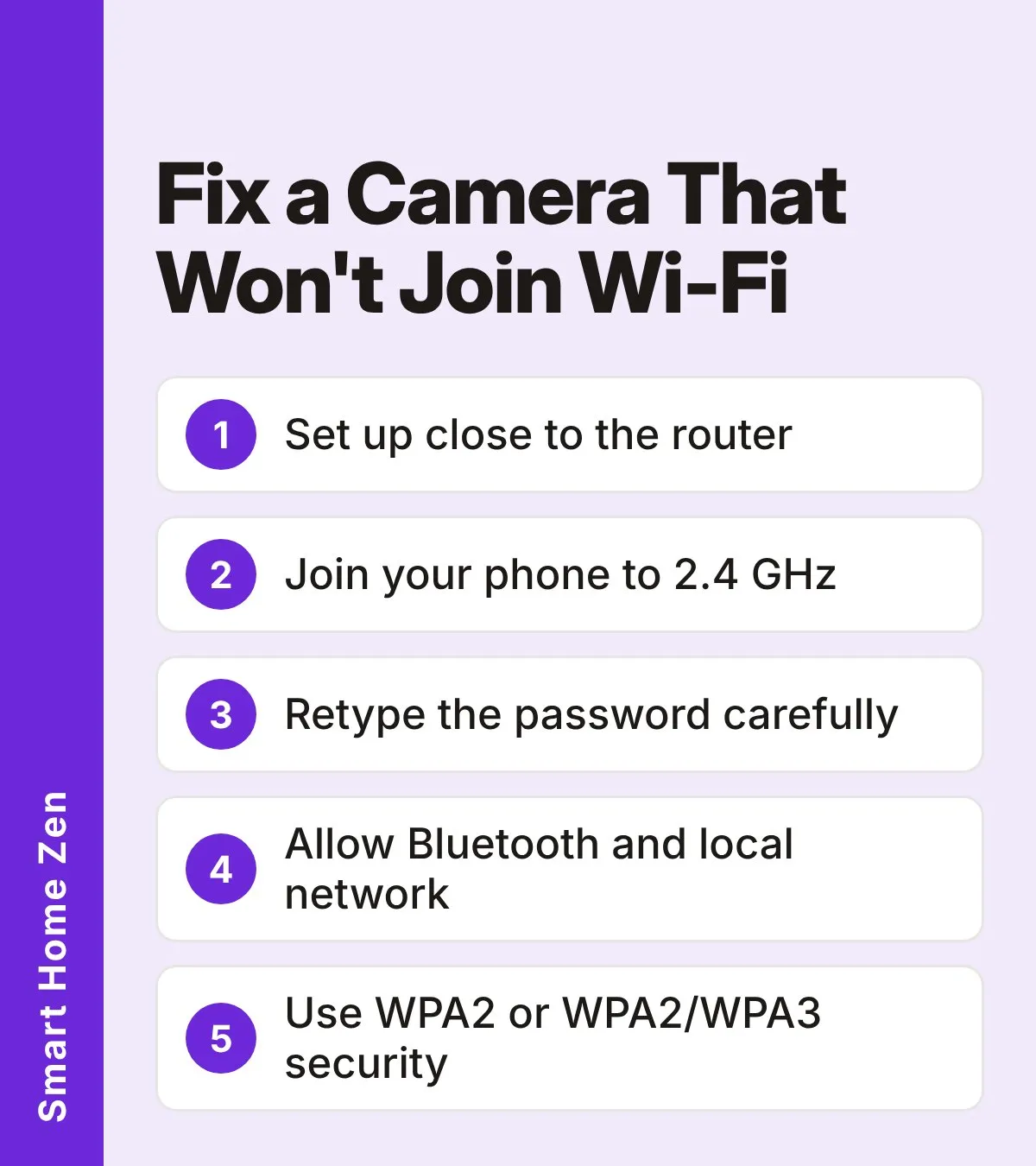
Try these first, in order:
- Put the camera and your phone close to the router.
- Make sure your phone is joined to the 2.4 GHz network, not 5 GHz.
- Retype the Wi-Fi password carefully (it is case sensitive).
- Unplug the camera for 5 to 10 seconds, plug it back in, and restart the setup.
If it still fails, read on. The router settings in fixes 5 to 9 solve most of the stubborn cases.
Why setup fails
Camera makers and setup guides point to a short list of causes. This table matches each to what you will see and the fix that usually clears it.
| Cause | What you may notice | First fix |
|---|---|---|
| Camera needs 2.4 GHz | Network missing from the list, or setup fails near the end | Join your phone to the 2.4 GHz network |
| Wrong password | “Incorrect password” or endless connecting | Retype it; check capitals and stray spaces |
| Odd characters in the network name | Setup fails even with the right password | Rename the network without symbols such as \ { } $ * ) # |
| Unsupported security mode | Camera cannot join, although other devices can | Use WPA2 (or WPA2/WPA3 mixed mode) |
| Guest network or isolation | Phone and camera cannot find each other | Use the main network for setup |
| App permissions off | App cannot find the camera | Allow Bluetooth, nearby devices, local network and location |
| Poor signal or crowded channel | Setup stalls or times out | Move closer; use channel 1, 6 or 11 |
Fix 1: Move everything close to the router
Do the first setup with the camera, your phone and the router in the same room. A weak signal during pairing is a common reason for a timeout, and you can move the camera to its final spot after it connects. If the camera then drops out in its permanent location, see why your security camera keeps going offline.
Fix 2: Use the 2.4 GHz band
Many home cameras support only 2.4 GHz. If your router broadcasts separate names, pick the one that does not include “5”, “5G” or “5GHz”. If you have a single name, it may combine both bands, and your phone may be sitting on 5 GHz during setup.
To get your phone onto 2.4 GHz:
- Forget the saved network on your phone, restart the phone, and reconnect to the 2.4 GHz network.
- Move the phone a little farther from the router. Higher bands fade faster with distance, so the phone may switch bands, though that is not guaranteed.
- Check your router app for an option such as 2.4 GHz-only, IoT, compatibility or legacy mode. Some routers have a built-in troubleshooting option for 2.4 GHz-only devices.
Fix 3: Check the password and network name
Wi-Fi passwords are case sensitive, so a capital letter in the wrong place will fail every time. Look for a space at the start or end of the password, which is easy to add when pasting. Also avoid using the same password as your camera app account, since the two can be confused when typing.
If your network name contains unusual symbols, rename it to plain letters and numbers. Camera makers list \ { } $ * ) # as characters that can cause problems.
Fix 4: Restart the camera and the app
Unplug the camera for 5 to 10 seconds, plug it back in, and wait for its status light to show it is ready for setup. Force close the camera app and reopen it. If the camera has a reset button, a factory reset puts it back into pairing mode; follow your camera’s instructions for how long to hold the button.
Fix 5: Allow the app permissions it needs
During setup, many apps use Bluetooth and local network access to find the camera. If you declined these permissions, the app may not see the camera at all. In your phone settings, allow Bluetooth, nearby devices, local network and location access for the camera app, then try again.
Fix 6: Change the router security mode
Most cameras work with WPA or WPA2. Some older models reject WPA3. Log in to your router and check the security type:
- If the router is set to WPA3 only, switch to a WPA2/WPA3 mixed (transition) mode or to WPA2.
- Note that changing this setting can briefly disconnect your other devices, so do it when that will not matter.
The label on the back of many routers also shows the default security details.
Fix 7: Use the 2.4 GHz channel settings that suit cameras
Crowded 2.4 GHz channels can break a connection during setup. In your router’s 2.4 GHz settings:
- Choose channel 1, 6 or 11, which do not overlap.
- Set the channel width to 20 MHz.
Save, wait for the router to apply the change, and try setup again.
Fix 8: Temporarily simplify the network
A few settings can get in the way until the camera is paired:
- Turn off the guest network for setup, since guest networks often isolate devices.
- Do not use a hidden network name.
- If your router lets you disable 5 GHz or split the bands, do that during setup, then restore your settings once the camera is online. Avoid renaming a combined network casually, because other devices may disconnect.
Fix 9: Use a phone hotspot as a last resort
If nothing else works, a second phone can act as a temporary 2.4 GHz network. Turn off your home router, create a hotspot with the same network name and password, pair the camera through a phone connected to it, then turn the hotspot off and bring the router back. On newer iPhones, turn on Maximize Compatibility so the hotspot uses 2.4 GHz. This works because the camera then sees the familiar network name and saves the details.
Step-by-step: fix the connection
| Step | What to do |
|---|---|
| 1 | Move close to the router. Do the first setup with the camera, your phone and the router in the same room. |
| 2 | Use the 2.4 GHz band. Join your phone to the 2.4 GHz network, not 5 GHz. |
| 3 | Check the password and name. Retype the password carefully, and rename the network to plain letters and numbers if it has unusual symbols. |
| 4 | Restart camera and app. Unplug the camera for 5 to 10 seconds, plug it back in, and force close and reopen the app. |
| 5 | Allow app permissions. Allow Bluetooth, nearby devices, local network and location access for the camera app. |
| 6 | Change the security mode. If the router is set to WPA3 only, switch to WPA2/WPA3 mixed mode or to WPA2. |
| 7 | Adjust the 2.4 GHz channel. Choose channel 1, 6 or 11 and set the channel width to 20 MHz. |
| 8 | Simplify the network. Turn off the guest network and avoid a hidden network name during setup. |
| 9 | Try a phone hotspot. As a last resort, pair the camera through a 2.4 GHz hotspot that uses your home network name and password. |
Common mistakes
- Setting up with the phone on 5 GHz and never checking.
- Typing the password from memory instead of checking it.
- Changing several router settings at once, which makes it hard to know what worked.
- Leaving the camera at the far end of the house during setup.
- Forgetting to restore router settings after setup.
When to call a professional
Most connection problems are settings, not faults. If the camera will not power on, the cable or adapter is damaged, or the camera is wired into household electrical circuits, stop and contact the camera maker or a licensed electrician. Never open mains-powered equipment yourself. If your internet provider supplies the router and you cannot reach its settings, ask them to help with band or security options.
Sources
 Save
Frequently asked questions
Why does my camera only see some of my Wi-Fi networks?
Most home cameras support only the 2.4 GHz band, so they will not list a network that broadcasts on 5 GHz only. If your router combines both bands under one name, you may need to split them or use a 2.4 GHz-only setup mode.
Can a camera connect to a guest network?
It can sometimes, but guest networks often isolate devices from each other, which can stop your phone and camera from talking during setup. Use your main network for setup unless the camera maker says otherwise.
Does my Wi-Fi password need to be special for a camera?
Not special, but simple is safer for setup. Passwords are case sensitive, and stray spaces or unusual symbols in the network name or password can cause failures.
My camera worked before and now will not reconnect. What changed?
A new router, a changed network name or password, or an updated security mode (such as WPA3 only) are the usual triggers. Re-enter the exact details or reset the camera and set it up again.